Working on a production-only WordPress site · Part 1
No staging? No problem: running a live WordPress site locally
The 30-second version
You've got a bug to fix on a WordPress site that only exists live, so there's no safe place to try things. The fix is to make a copy on your own computer. First, back up the live site. Then use Local to bring a copy home, either by pulling it straight from WP Engine, importing a backup .zip, or exporting with the All-in-One WP Migration plugin. Finally, make sure your copy can't email real customers or charge real cards, reproduce the bug, and delete the copy when you're done.
On this page
In this post we'll use a made-up site, example-bakery.com, a small bakery with an online order form. By the end you'll have example-bakery.local running on your computer, looking and behaving like the real thing, and you'll be able to break it as much as you like.
This is Part 1 of a two-part series. Part 2 covers getting your fix back onto the live site safely.
Why this matters
When a site only exists in production, every change is made with real visitors watching. If you try a fix and it white-screens the site, the bakery can't take orders until you undo it. If your test checkout goes through, someone gets charged. If you trigger an email, a real customer gets it.
A local copy gives you:
- A place to fail safely. Crash it, reload it, start over.
- Speed. No uploading files to a server and waiting to see what happened.
- Confidence. By the time you touch production, you already know the fix works.
Production, staging and local: three copies of the same site
Think of a bakery.
- Production is the shop counter: the real site at example-bakery.com that real customers use. Whatever happens here, customers see it.
- Staging is the back kitchen: a private copy on a server where you can test a recipe before it goes on the counter. Customers never see it. Our client doesn't have one.
- Local is your kitchen at home: a copy running only on your own computer. Nobody else can see it, and it doesn't need the internet to work.
You never test new recipes on the shop counter. That's the whole rule.
Why not just be really careful on the live site?
Because "careful" doesn't stop surprises. A plugin update can clash with the theme, a typo in one PHP file can take down the whole site, and some actions, like sending emails or taking payments, can't be undone. On a local copy, the worst case is you delete it and start again.
Step 1:Back up production before you touch anything
This is step zero, even though we're only reading from the live site. Some of the methods below install a plugin or put extra load on the live server, and things go wrong. A fresh backup means that whatever happens, you can put the site back exactly how it was.
If the site is on WP Engine:
- Log in to the WP Engine User Portal and go to Sites.
- Click the production environment's name.
- Click Backups.
- Click Create backup, add a description like "pre-template updates", and click Create backup.
If it's on another host: Use the host's own backup tool (most control panels have one). If you're not sure where it is, ask your PM or the host's support before going further.
What's actually in a WordPress site?
A WordPress site is two things in a trench coat
- Files: the
wp-contentfolder, which holds your theme (how it looks), plugins (extra features) and uploads (images). WordPress's own core files can be re-downloaded any time, so they don't matter as much. - The database: a big organised spreadsheet holding every post, page, setting, user and order. It's usually exported as a single
.sqlfile.
Every method in this post is just a different way of carrying those two things from the server to your computer.
Step 2:Install Local and find your way around
- Download Local from localwp.com. It's free and runs on Windows, macOS and Linux.
- Install it and open it. You can skip creating an account unless you're using the WP Engine method below, which needs you to sign in to WP Engine.
- Keep Local updated: WP Engine's docs say Local Connect needs the latest version.
The parts we'll use:
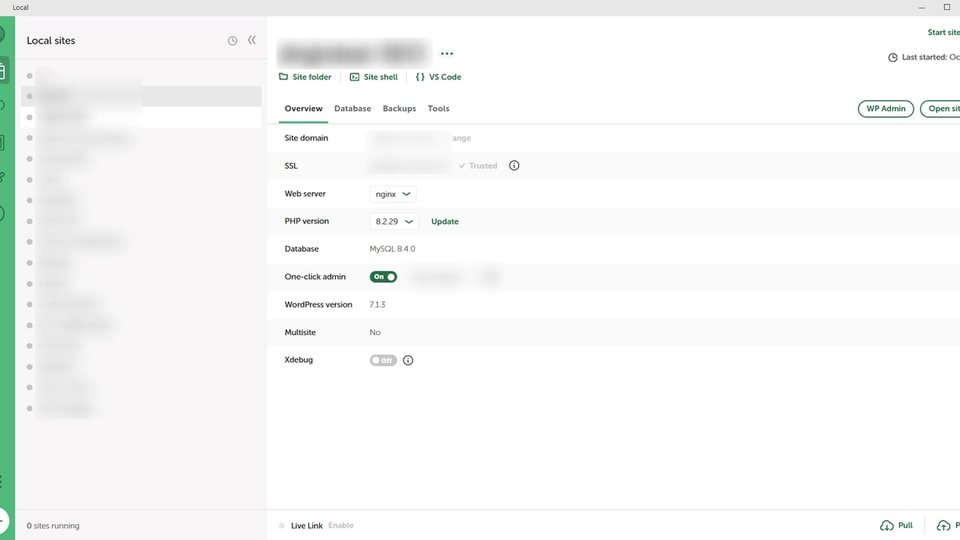
- Local Sites (sidebar): your list of local sites. Each site has an Overview page showing its domain, PHP version and web server.
- The + button (bottom-left): creates a new site.
- Connect (cloud icon in the sidebar): links Local to WP Engine or Flywheel hosting so you can pull sites.
- Pull (bottom-right of a site's Overview, once connected): downloads changes from the live site.
- Open site shell (right-click a site): a terminal already set up for that site, with WP-CLI ready to go.
- WP Admin / Open site buttons (top-right): open your local site's dashboard or front end.
- Tools → Mailpit: Local's fake inbox. More on that in the gotchas.
WP-CLI
A way to boss WordPress around by typing commands instead of clicking through the dashboard. wp plugin list asks "what plugins are installed?"; wp search-replace finds and swaps text across the whole database. Local's site shell has it ready to use.
Which method should I use?
The site is hosted on WP Engine (or Flywheel) and you have access to the User Portal. Use Method A: Pull with Local Connect. Fastest, and you can pull again later.
You can download a full backup .zip (files + .sql database) from the host. Use Method B: Import a .zip. No plugins on the live site.
You only have WordPress admin access (no hosting login). Use Method C: All-in-One WP Migration. Works anywhere, but it installs a plugin on production.
Rule of thumb: prefer the method that changes production the least. A and B don't install anything on the live site; C does.
Method A: Pull from WP Engine with Local Connect
What's "API access"?
An API is a door that lets one program talk to another. Turning on API access in WP Engine unlocks a door so Local can ask, "Can I please have a copy of this site?" on your behalf.
Step 3:Connect Local to WP Engine
- In Local, open the Connect tab (cloud icon).
- Click Connect to a platform, then Sign in next to WP Engine.
- Log in with your User Portal credentials. You'll be sent back to Local, and the account's sites will appear in the Connect tab.
Step 4:Pull the production site
- In the Connect tab, find the site and click Pull to Local.
- Give the local site a name, e.g.
example-bakery. - Choose the Production environment.
- Click Connect & pull site and wait. Big media libraries take a while.
Pulling again later? Open the site under Local Sites, click Start site, then Pull (bottom-right). Select files lets you pick exactly what to download, and you can choose whether to include the database.
Right next to Pull is a Push button. Push sends your local copy to the live site. Don't touch it in this post. We'll cover deploying safely in Part 2.
Some things never come across in a pull
wp-config.php stays behind
Local Connect always leaves out wp-config.php (plus wp-admin, wp-includes, .git and node_modules). That's on purpose: the live config has the live server's settings. If you edit your local wp-config.php (and you will, see the gotchas below), those edits stay local. Pull and push exclusions live in .wpe-pull-ignore and .wpe-push-ignore in the site's app/public folder. Local Connect also doesn't support multisite installs.
Method B: Import from a .zip backup
Step 5:Download a backup .zip from the live site
On WP Engine:
- User Portal → Sites → the production environment → Backups.
- Find the backup you made in step zero, open its ⋯ menu and choose Prepare ZIP.
- Choose Full Backup (all files and the database) and click Prepare ZIP.
- When it's ready (you can get an email), click Download ZIP next to that backup. The link lasts 7 days.
On other hosts: you need a .zip containing a wp-content folder and a .sql database dump. Your host's backup tool may give you one, or you can use a migration plugin like WP Migrate (Local's docs recommend its free version for non-WP Engine hosts).
Step 6:Import the .zip into Local
- Drag the .zip onto the Local window (or use Import from Local's menu).
- Answer the prompts: site name, local domain (e.g.
example-bakery.local) and where to store it. - Wait. Small sites take seconds; big ones take a lot longer.
Step 7:If the import fails, do it by hand
Local's docs have a manual fallback. It's also a good way to see what's really going on.
- Unzip the backup somewhere easy to find.
- In Local, create a new blank site (any admin username and password is fine, since they'll be overwritten).
- In the new site's
app/publicfolder, rename thewp-contentfolder (e.g.wp-content-old) and copy the backup'swp-contentfolder in. - Copy the backup's
.sqlfile intoapp/publictoo. - Right-click the site → Open site shell and run:
# Load the live database into your local site
wp db import example-bakery.sql

# Swap the live address for the local one everywhere in the database
wp search-replace 'https://example-bakery.com' 'http://example-bakery.local' --dry-run
wp search-replace 'https://example-bakery.com' 'http://example-bakery.local'
The first search-replace with --dry-run only reports what it would change. Run the real one once the numbers look sensible.
Why not just use find-and-replace in a text editor?
WordPress stores some settings in a packed-up format that remembers how long each piece of text is. If you swap example-bakery.com (17 letters) for example-bakery.local (20 letters) by hand, the "length" labels are now wrong and WordPress quietly throws those settings away. wp search-replace unpacks, swaps and re-packs them properly.
Method C: All-in-One WP Migration
What's a .wpress file?
All-in-One WP Migration packs the whole site (files and database) into one file ending in .wpress. It's like a moving box only that plugin knows how to unpack, so you need the same plugin on both ends.
Installing a plugin is a change to the live site
Installing and activating a plugin on production is touching production. Check with your PM or the client first, make sure your step-zero backup exists, and plan to remove the plugin (and the export file) afterwards.
Step 8:Export from the live site
- In the live site's WP Admin, go to Plugins → Add New, search for All-in-One WP Migration, then install and activate it.
- Go to All-in-One WP Migration → Export.
- Choose File as the export destination.
- Wait for it to build, then download the
.wpressfile. - Delete the export from the plugin's Backups page so a full copy of the site isn't left sitting on the server. When you're finished, deactivate and delete the plugin if it wasn't there before.
Step 9:Import into Local
- In Local, click + and create a fresh, empty site (e.g.
example-bakery). - Click WP Admin, log in with the username/password you just made, and install and activate All-in-One WP Migration there too.
- Go to All-in-One WP Migration → Import and drag in the
.wpressfile (or choose File from the Import From menu). - Confirm the warning (it overwrites this local site completely) and wait.
- You'll be logged out. Log back in with the live site's admin username and password, because the database now came from production.
The plugin updates the site's URLs for you during import. Still double-check (see "Check your local copy works" below).
The import file is too big
The free plugin itself doesn't cap imports. The limit shown on the Import screen comes from the server's PHP upload settings, which here means your local server. On Local you control those, so you can raise them for this one site. Uploads that bypass those server limits are a feature of the paid Unlimited Extension. Older tutorials mention a fixed 512MB free limit or editing a plugin constant; that's outdated.
In Local, PHP settings live in a template file. Open the site's folder (Go to site folder) and edit:
upload_max_filesize = 1024M
post_max_size = 1024M
memory_limit = 512M
max_execution_time = 300
Then stop and start the site in Local so it picks up the change.
Step 10:Make your local copy safe before you click around
Now the site's running, but it still thinks it's the real bakery: it has real API keys, real payment settings and real customer emails. Before you do anything else, tell it that it's a local copy.
Mark the site as local and block surprise outgoing calls
// Add above the line that says "That's all, stop editing!"

// Tell WordPress (and well-behaved plugins) this is not the live site.
define( 'WP_ENVIRONMENT_TYPE', 'local' );

// Show errors while you debug, written to wp-content/debug.log.
define( 'WP_DEBUG', true );
define( 'WP_DEBUG_LOG', true );
define( 'WP_DEBUG_DISPLAY', false );

// Stop scheduled tasks (cron) from running automatically on page load.
define( 'DISABLE_WP_CRON', true );

// Block requests to outside services, except WordPress.org (for updates).
define( 'WP_HTTP_BLOCK_EXTERNAL', true );
define( 'WP_ACCESSIBLE_HOSTS', 'api.wordpress.org,*.wordpress.org' );
WP_HTTP_BLOCK_EXTERNAL stops most plugins from calling payment gateways, CRMs and other APIs through WordPress. It won't stop everything (some plugins and front-end scripts like analytics bypass it), so still work through the gotchas below.
Step 11:Check your local copy works
- Open the site. Click Open site. Does the home page look like the live one?
- Log in. Click WP Admin. With methods A, B and C you'll usually need the live admin username and password. If you don't have them, reset the password locally (see the code block below). That only changes your local copy.
- Check the URLs. Hover over links and look at image addresses. Every one should start with
http://example-bakery.local, nothttps://example-bakery.com. If you click a link and land on the live site, the search-replace missed something. - Check the versions match. Compare the WordPress and PHP versions with production (see the gotcha below).
- Reproduce the bug. Follow the steps from the ticket. If you can make it happen locally, you're ready to fix it. If you can't, that's useful information too: the difference between local and production might be the bug.
Handy checks in the site shell
# Which address does WordPress think it lives at?
wp option get siteurl
wp option get home

# Any live URLs left in the database? (should report 0 replacements)
wp search-replace 'https://example-bakery.com' 'http://example-bakery.local' --dry-run

# WordPress version
wp core version

# List admin accounts, then set a local-only password for yours
wp user list --role=administrator --fields=ID,user_login
wp user update 1 --user_pass='local-only-password'
What could go wrong
PHP and WordPress versions don't match production
If production runs PHP 8.1 and your local site runs PHP 8.3, you might see bugs that don't exist live, or miss the one you're hunting. Check production under Tools → Site Health → Info (look under WordPress and Server), then set the same PHP version on the local site's Overview page in Local. Don't click Local's WordPress Update button unless production is updated too. Match what's live.
Links send you back to the live site
If a search-replace was missed or only half-worked, clicking a link takes you to the live site, and you might not notice you're now editing production. Watch the address bar. Run the --dry-run check above. Look for hard-coded URLs in theme files, page-builder data and wp-config.php too.
Real customers get emails from your laptop
The database is full of real customer email addresses. Trigger an order or a password reset and WordPress tries to email them. Local helps: it routes WordPress mail into Mailpit, a fake inbox (Tools → Mailpit → Open Mailpit), so it never leaves your computer. But if the site uses an SMTP or email-service plugin (one that sends through a mail service's API or SMTP login instead of PHP's normal mail), that can skip Mailpit and send real emails. Deactivate those plugins locally, or switch them to a test/log-only mode.
Real payments, API keys and tracking
Payment gateways (Stripe, PayPal…), CRMs, shipping services and analytics/Tag Manager all came across with their live settings. Locally:
- Put payment plugins into test/sandbox mode, or deactivate them.
- Deactivate or disconnect plugins that sync to outside services (newsletters, CRMs, inventory).
- Turn off analytics/Google Tag Manager, or your clicking around shows up in the client's reports.
- Remember
DISABLE_WP_CRONfrom earlier: scheduled tasks (subscription renewals, scheduled emails, syncs) would otherwise run as you browse.
Caching and security plugins break things locally
Caching plugins can serve old pages or point to files that only exist on the live server. Security plugins can lock you out, block your local domain, or force HTTPS. Firewalls and login limiters are common culprits. If the site behaves strangely, deactivate caching and security plugins first (locally only), and clear any cache folders inside wp-content.
Big sites and slow imports
A site with years of uploads can be tens of gigabytes. Check your disk space before you start. If you only need the code and database, a partial pull (Method A's Select files) or a Partial Backup ZIP without Media uploads is much faster. Images will show as broken, which is fine for most bugs.
Real customer data is on your computer now
Orders, names, addresses, emails: production data is real people's data. Treat the copy like it's confidential, because it is.
- Don't share screenshots that show customer details. Blur them or use your own test orders.
- Don't upload the backup or
.wpressfile to personal cloud drives, chat apps or tickets. - When the ticket is done, delete the local site (right-click → Delete in Local) and delete the downloaded .zip/.wpress files and any unzipped folders, including from your Downloads folder and trash.
What I’d tell past me
- Make the backup before you're curious, not after something's gone wrong.
- Lock down email, payments and cron in your local copy before you click anything.
- If you can't reproduce the bug locally, compare versions and plugins before assuming the copy is wrong.
- Write down exactly which method and settings you used. Part 2 is much easier when you know how the copy was made.
Teaser for Part 2
You've now got example-bakery.local running, the bug reproduced, and nothing you do can reach a real customer. Next comes the nerve-wracking part: getting the fix back onto the live site. In Part 2 we'll cover pushing from Local versus uploading files over SFTP, making a fresh backup right before you deploy, and checking that the live site is still healthy afterwards (and what to do if it isn't).